![[Python] 네이버뉴스 크롤링 2 (셀레니움, BS4, pandas)](https://img1.daumcdn.net/thumb/R750x0/?scode=mtistory2&fname=https%3A%2F%2Fblog.kakaocdn.net%2Fdna%2F581Uv%2FbtrSIrZm8hJ%2FAAAAAAAAAAAAAAAAAAAAAFVXY6dXkwHncctu01e35CLlbp_jGhyAKUzipGaz9Q_y%2Fimg.png%3Fcredential%3DyqXZFxpELC7KVnFOS48ylbz2pIh7yKj8%26expires%3D1772290799%26allow_ip%3D%26allow_referer%3D%26signature%3D%252By3Jii%252BGzePTwYdf43%252FE1t3RC2g%253D)
반응형
반응형
1. 네이버 뉴스 크롤링 환경설정
📌 이전 글 확인하기
이전 글에서는 네이버 검색창에서 키워드를 입력하고,
뉴스 탭으로 넘어가서 기사의 제목을 불러오는 작업을 하였습니다.
이번 글에서는 키워드와 수집 건수를 설정하고,
제목과 기사링크를 메모장과 엑셀을 자동 저장하는 코드를 알아보겠습니다.
- 이번 네이버 뉴스 크롤링(스크래핑)에 관한 모듈을 가져오도록 하겠습니다.
➜ Selenium, BeautifulSoup4, time, pandas, mat
#Part 1. 모듈 가져오기
from selenium import webdriver
from selenium.webdriver.common.by import By
from selenium.webdriver.common.keys import Keys
from bs4 import BeautifulSoup
from time import sleep
import pandas as pd
import math
2. 키워드 및 수집 설정
- 3개의 단계로 나누어 설정을 진행하겠습니다.
➜ 첫 번째 단계: 키워드
➜ 두 번째 단계: 수집 건수
➜ 세 번째 단계: 저장 파일(상대 or 절대 경로를 지정해줍니다.)
#Part 1. 모듈 가져오기
from selenium import webdriver
from selenium.webdriver.common.by import By
from selenium.webdriver.common.keys import Keys
from bs4 import BeautifulSoup
from time import sleep
import pandas as pd
import math

#Part 2. 키워드 수집 설정
Keyword = input('1. 수집 검색어는 무엇입니까?: ')
ArticleNum = int(input('2. 몇 건을 수집하시겠습니까?: '))

	#상대경로 지정방법
ft_name = input('3.결과를 저장할 txt형식의 파일명을 쓰세요(예: 파일명.txt): ')
fx_name = input('4.결과를 저장할 xlsx형식의 파일명을 쓰세요(예: 파일명.xlsx): ')

'''
    절대경로 지정방법
    ft_name = input('3.결과를 저장할 txt형식의 파일명을 쓰세요(예: c:\\py_temp\\파일명.txt): ')
    fx_name = input('4.결과를 저장할 xlsx형식의 파일명을 쓰세요(예: c:\\py_temp\\파일명.xlsx): ')
'''
경로지정
- 상대경로
➜ 네이버 뉴스 크롤링 코드가 있는 경로에 메모장 파일과 엑셀 파일이 저장 됩니다. - 절대경로
➜ 내가 저장하고 싶은 곳의 경로를 함께 쓰면 그 곳으로 파일들이 저장 됩니다.
3. 셀레니움 & BeautifulSoup4를 이용한 Chrome 제어
- 셀레니움
➜ 키워드를 검색하고 뉴스탭으로 진입합니다. - BeautifulSoup4
➜ 페이지의 html 소스 코드를 받아옵니다.
#Part 1. 모듈 가져오기
from selenium import webdriver
from selenium.webdriver.common.by import By
from selenium.webdriver.common.keys import Keys
from bs4 import BeautifulSoup
from time import sleep
import pandas as pd
import math

#Part 2. 키워드 수집 설정
Keyword = input('1. 수집 검색어는 무엇입니까?: ')
ArticleNum = int(input('2. 몇 건을 수집하시겠습니까?: '))

	#상대경로 지정방법
ft_name = input('3.결과를 저장할 txt형식의 파일명을 쓰세요(예: 파일명.txt): ')
fx_name = input('4.결과를 저장할 xlsx형식의 파일명을 쓰세요(예: 파일명.xlsx): ')

'''
    절대경로 지정방법
    ft_name = input('3.결과를 저장할 txt형식의 파일명을 쓰세요(예: c:\\py_temp\\파일명.txt): ')
    fx_name = input('4.결과를 저장할 xlsx형식의 파일명을 쓰세요(예: c:\\py_temp\\파일명.xlsx): ')
'''

#Part 3. 셀레니움 크롬 제어
options = webdriver.ChromeOptions()
options.add_argument('start-maximized')
driver = webdriver.Chrome('크롬드라이버 경로', options=options)
driver.implicitly_wait(5)
driver.get('https://www.naver.com/')

html = driver.page_source
soup = BeautifulSoup(html, 'html.parser')

driver.find_element(By.ID, 'query').click()
driver.find_element(By.ID, 'query').send_keys(Keyword + Keys.ENTER)
driver.find_element(By.LINK_TEXT, '뉴스').click()
ArticlePages = math.ceil(int(ArticleNum) / 10)
PageNum = 1
print('=' *80)

print('5초 후에 시작합니다.')
sleep(5)- 네이버 뉴스 탭에는 한 페이지마다 10개의 뉴스가 있습니다.
- 15개 기사를 수집한다고 했을때, 1페이지에서 10개, 2페이지에서 5개를 수집해야합니다.
- ArticlePages 변수를 보면 math 모듈(수학 함수 관련)을 사용한 것을 알 수 있습니다.
➜ Ceil함수는 실수값을 올림하여 정수화 시켜주는 함수입니다.
1. 몇 페이지까지 가서 데이터를 수집해야하는지를 계산해주는 코드를 작성한 것입니다.
2. 입력된 수집 건수에 따라, 페이지를 넘길지 말지 계산해주죠.
4. 키워드 수집 데이터 추출
데이터 수집 기준
- 연번
➜ 데이터 관리를 위해서 기본적으로 있는 것이 좋습니다. - 기사 제목
➜ 해당 키워드에 대해 내가 필요한 뉴스를 찾기 위해서는 제목이 필수로 들어갑니다. - 링크
➜ 빠르게 해당 기사로 넘어가 세부내용을 볼 수 있도록 링크작업도 빠질 수 없죠.
#Part 1. 모듈 가져오기
from selenium import webdriver
from selenium.webdriver.common.by import By
from selenium.webdriver.common.keys import Keys
from bs4 import BeautifulSoup
from time import sleep
import pandas as pd
import math

#Part 2. 키워드 수집 설정
Keyword = input('1. 수집 검색어는 무엇입니까?: ')
ArticleNum = int(input('2. 몇 건을 수집하시겠습니까?: '))

	#상대경로 지정방법
ft_name = input('3.결과를 저장할 txt형식의 파일명을 쓰세요(예: 파일명.txt): ')
fx_name = input('4.결과를 저장할 xlsx형식의 파일명을 쓰세요(예: 파일명.xlsx): ')

'''
    절대경로 지정방법
    ft_name = input('3.결과를 저장할 txt형식의 파일명을 쓰세요(예: c:\\py_temp\\파일명.txt): ')
    fx_name = input('4.결과를 저장할 xlsx형식의 파일명을 쓰세요(예: c:\\py_temp\\파일명.xlsx): ')
'''

#Part 3. 셀레니움 크롬 제어
options = webdriver.ChromeOptions()
options.add_argument('start-maximized')
driver = webdriver.Chrome('크롬드라이버 경로', options=options)
driver.implicitly_wait(5)
driver.get('https://www.naver.com/')

html = driver.page_source
soup = BeautifulSoup(html, 'html.parser')

driver.find_element(By.ID, 'query').click()
driver.find_element(By.ID, 'query').send_keys(Keyword + Keys.ENTER)
driver.find_element(By.LINK_TEXT, '뉴스').click()
ArticlePages = math.ceil(int(ArticleNum) / 10)
PageNum = 1
print('=' *80)

print('5초 후에 시작합니다.')
sleep(5)


#Part 4. 각 항목별 데이터를 수집하여 리스트에 저장
sn2 = [ ]       #연번 저장
title2 = [ ]    #기사제목 저장
url2 = [ ]      #링크 저장

no = 1

for a in range(1, ArticlePages + 1) :

    html_2 = driver.page_source
    soup_2 = BeautifulSoup(html_2, 'html.parser')

    content_2 = soup_2.select('div > a.news_tit')
    for b in content_2 :
        try :
            title = b.text
        except :
            continue
        else :
            f = open(ft_name, 'a' , encoding="UTF-8")
            print('1.연번:',no)
            sn2.append(no)
            f.write('\n'+'1.연번:' + str(no))

            print('2.기사제목:',title)
            title2.append(title)
            f.write('\n' + '2.기사제목:' + title)

            url = b.attrs['href']
            print('3.링크:' , url)
            url2.append(url)
            f.write('\n' + '3.링크:' + url + '\n')

            f.close( )

            no += 1
            print("\n")

            if no > ArticleNum :
                break

            sleep(1)        # 페이지 변경 전 1초 대기

    a += 1
    b = str(a)
    driver.find_element(By.LINK_TEXT ,'%s' %b).click()


print("요청된 데이터 수집 작업이 완료되었습니다!")
여기서부터 셀레니움과 BS4를 막 다뤄보고 있는 사람이라면 어렵게 느껴질 수 있습니다.
본인도 여기저기 구글링하여 공부하며 코드를 작성해 보았습니다.
하나하나 차근차근 한 줄 씩 살펴보고 코드를 작성해 보시기 바랍니다.
※ 코드 해석을 위한 구글링 키워드
- 자료형_리스트, for 반복문, 파일 다루기, BS4 문법, if문, 문자열 포매팅 %, 셀레니움 문법
5. 수집된 데이터 저장하기
판다스 모듈을 이용하여 데이터 저장
#Part 1. 모듈 가져오기
from selenium import webdriver
from selenium.webdriver.common.by import By
from selenium.webdriver.common.keys import Keys
from bs4 import BeautifulSoup
from time import sleep
import pandas as pd
import math

#Part 2. 키워드 수집 설정
Keyword = input('1. 수집 검색어는 무엇입니까?: ')
ArticleNum = int(input('2. 몇 건을 수집하시겠습니까?: '))

	#상대경로 지정방법
ft_name = input('3.결과를 저장할 txt형식의 파일명을 쓰세요(예: 파일명.txt): ')
fx_name = input('4.결과를 저장할 xlsx형식의 파일명을 쓰세요(예: 파일명.xlsx): ')

'''
    절대경로 지정방법
    ft_name = input('3.결과를 저장할 txt형식의 파일명을 쓰세요(예: c:\\py_temp\\파일명.txt): ')
    fx_name = input('4.결과를 저장할 xlsx형식의 파일명을 쓰세요(예: c:\\py_temp\\파일명.xlsx): ')
'''

#Part 3. 셀레니움 크롬 제어
options = webdriver.ChromeOptions()
options.add_argument('start-maximized')
driver = webdriver.Chrome('크롬드라이버 경로', options=options)
driver.implicitly_wait(5)
driver.get('https://www.naver.com/')

html = driver.page_source
soup = BeautifulSoup(html, 'html.parser')

driver.find_element(By.ID, 'query').click()
driver.find_element(By.ID, 'query').send_keys(Keyword + Keys.ENTER)
driver.find_element(By.LINK_TEXT, '뉴스').click()
ArticlePages = math.ceil(int(ArticleNum) / 10)
PageNum = 1
print('=' *80)

print('5초 후에 시작합니다.')
sleep(5)


#Part 4. 각 항목별 데이터를 수집하여 리스트에 저장
sn2 = [ ]       #연번 저장
title2 = [ ]    #기사제목 저장
url2 = [ ]      #링크 저장

no = 1

for a in range(1, ArticlePages + 1) :

    html_2 = driver.page_source
    soup_2 = BeautifulSoup(html_2, 'html.parser')

    content_2 = soup_2.select('div > a.news_tit')
    for b in content_2 :
        try :
            title = b.text
        except :
            continue
        else :
            f = open(ft_name, 'a' , encoding="UTF-8")
            print('1.연번:',no)
            sn2.append(no)
            f.write('\n'+'1.연번:' + str(no))

            print('2.기사제목:',title)
            title2.append(title)
            f.write('\n' + '2.기사제목:' + title)

            url = b.attrs['href']
            print('3.링크:' , url)
            url2.append(url)
            f.write('\n' + '3.링크:' + url + '\n')

            f.close( )

            no += 1
            print("\n")

            if no > ArticleNum :
                break

            sleep(1)        # 페이지 변경 전 1초 대기

    a += 1
    b = str(a)
    driver.find_element(By.LINK_TEXT ,'%s' %b).click()


print("요청된 데이터 수집 작업이 완료되었습니다!")


#Part 5. 수집된 데이터 저장

df = pd.DataFrame()
df['연번']=sn2
df['제목']=pd.Series(title2)
df['링크']=pd.Series(url2)
df.to_excel(fx_name,index=False, encoding="utf-8" , engine='openpyxl')
실행하면 아래 터미널과 같이 프린트 된것을 볼 수 있습니다.
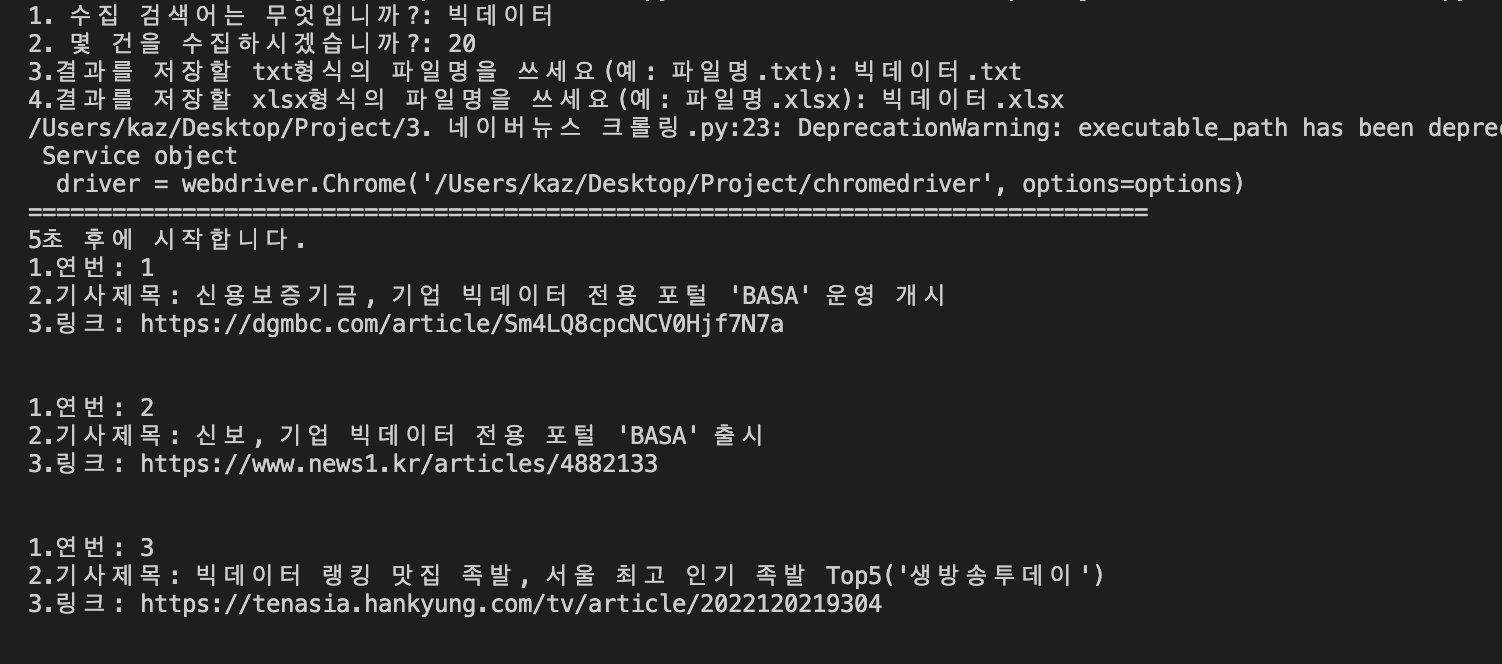
이렇게 모든 데이터가 수집이 완료되고, 파일이 저장됩니다.
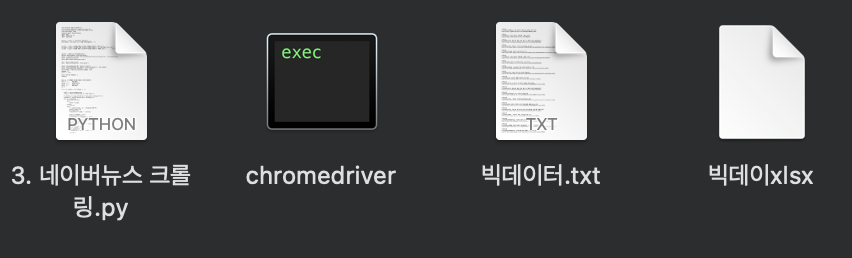
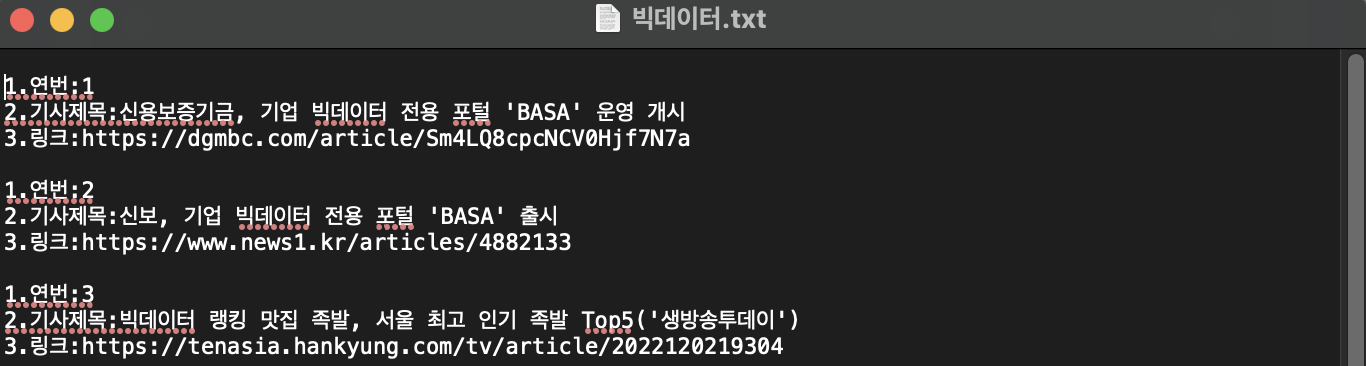
각 파일의 세부내용 입니다.

반응형
'Python > 크롤링(스크래핑)' 카테고리의 다른 글
| [Python] 대한민국 정책브리핑 보도자료 크롤링(SN, BS4, Pd) (0) | 2022.12.05 |
|---|---|
| [Python] 네이버뉴스 크롤링 1 (셀레니움, BS4) (0) | 2022.11.02 |
| [Python] 파이썬 Selenium(셀레니움) 설치(for.Mac) (0) | 2022.10.14 |
| [Python] 파이썬 BeautifulSoup4 설치(for.Mac) (0) | 2022.10.14 |